All FarmBots ship FREE
Not applicable to Net 30 POs

Yesterday we deployed one of the biggest updates to the FarmBot web app in our history, including major new ways to design, navigate, customize, and control your FarmBot. There is a lot to cover, so let’s get into it!
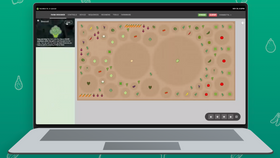
After more than two years of development, the 3D farm designer no longer carries the BETA label and is now enabled by default for all new accounts.
This is a big milestone for us and one that I am particularly very proud of 😊 The full 3D environment is rich, powerful, more immersive and intuitive, and just plain more fun to work with. And today, we’ve finally reached feature parity and even exceeded functionality in many ways compared to the 2D designer. If you haven’t tried it yet, please turn on 3D from the map legend and let us know what you think! We’re particularly interested in hearing your feedback on the new 3D-native workflows which we’ll discuss in more depth below.

You can now quickly and easily plant grids and rows of plants directly in the 3D garden with a new 3D-native workflow. To start, click the + GRID button when a crop details panel is opened, or click g on your keyboard. Then click to set the starting location of the grid (the location of the first plant).

Then move your cursor to visualize a draft grid or row in any direction and click again to set the grid size (for example: 5 x 4 plants).

A set of controls will then appear directly in the 3D scene allowing you to adjust the starting location, spacing, number of plants, and rectangular or hexagonal packing before saving. We put a lot of effort into making this feel natural, fast, and intuitive, and we hope you’ll like the feel of it over the 2D form-based workflow.

You can also use this new workflow for adding grids and rows of points, with added controls for setting point color and radius.

Whenever you’re positioning an individual plant or point, or choosing the starting location for a grid or row, bright red indicators now appear under any visible plants, weeds, or points that share the exact same X or Y coordinates. This makes it easy to perfectly line up new items with an existing row or column.

You can now hold Shift and click the first corner of an area, then draw over the garden and click to set the opposite corner. A live count of plants within the area appears while drawing, and once set, the area can be resized by dragging the edge arrow controls. From the popup you can then choose to select plants, weeds, points, tool slots, or all objects within the area and then open the full selection panel, create a group, or delete the selected items.

To activate area selection on mobile, click the new SELECT AREA button located in the map legend.
There are several new ways in the bottom right of the screen to quickly set your viewing angle and style in 3D:
p or click the PERSPECTIVE button to toggle between perspective mode and a near-orthographic mode.
Two new follow modes make it easier to watch FarmBot work from a useful point of view. FOLLOW UTM keeps the virtual camera in front of the tool head as it moves, providing a close-up view of the mounted tool and its position over the garden.

FOLLOW CAMERA VIEW shows you the top-down view from where FarmBot’s camera is located, providing a fun flyover effect!

Both modes can be entered from the buttons in the lower-right of the screen. Click the mode button again or the Escape key to exit.
Turn on SECTION from the map legend to slice through the 3D garden and focus on a specific cross-section. You can switch the AXIS and adjust the section’s WIDTH and CENTER using the setting’s sub menu or the controls placed directly in the 3D scene. Enabling FOLLOW BOT keeps the section centered on FarmBot as it moves.

Click a side face on the view prism, turn PERSPECTIVE off, and turn off CLIP ALL to get a clear view of your soil’s height variation throughout the garden and to better see the spatial relationship between FarmBot and its toolbays, the bed, and the plants.

There’s also one more section view setting to explore for a little surprise 🐞 👀
You’ll now find new 3D-native jog controls (spheres with two arrows) positioned around FarmBot’s X, Y, and Z axes. Clicking a control reveals a popup where you can jog that axis a relative distance of 1, 10, 100, or 1,000 mm, enter an absolute coordinate and click GO, or quickly issue a find home, go to home, or go to max command.

You can also click and drag the 3D controls to preview and execute a movement. If you change your mind mid-drag, just move the arrow back near the starting location and it will snap into place and allow you to release the click without issuing a move command.

The new SCENE OBJECTS panel allows you to make the 3D virtual scene better match your real life FarmBot environment, or build something a little more creative ✨
You can choose from the ready-made OUTDOOR, LAB, GREENHOUSE, or MARS scenes, import individual objects from any of those collections, or build a CUSTOM scene.

When customizing your own scene, objects such as trees, fences, solar panels, greenhouse walls, and more can be positioned, resized, rotated, and recolored.

Clicking any object in the scene shows a popup and 3D-native controls for quick edits. You can also add basic custom shapes and choose the ground texture independently.

We’ve been having a lot of fun making some unique FarmBot environments and look forward to seeing what you (or your kids) come up with!

Clicking the UTM now opens a more capable popup. In addition to showing the current X, Y, and Z coordinates, it allows you to change the MOUNTED TOOL, perform tool-specific actions, toggle TRAIL and LASER visibility, enter/exit FOLLOW UTM mode, and move to or find the home position.
The available TOOL ACTIONS adapt to what is mounted, providing quick access to operations such as reading the soil sensor, toggling the vacuum pump or solenoid valve, and running the Rotary Tool forwards or reverse.

Clicking the raised bed now provides direct access to its various settings such as wall thickness and leg size. And clicking the WiFi router opens a connectivity summary with WiFi strength, port status, a connection diagram, and more.

Not sure what can be clicked in the 3D environment? Hover over the new question-mark icon at the bottom of the map legend to outline interactive objects in yellow.

There are now unique animations inside the 3D camera’s field of view when various camera operations are run. Camera calibration renders a calibration card on the soil surface along with a blue scanning plane.

Soil-height measurements display an animated measurement grid.

And weed detection shows a red scanning plane. Together, these visualizations provide immediate context for what the camera is doing and where it can see.

As though all the 3D improvements weren’t enough, in this release we’re introducing a whole new power-user focused way of controlling the FarmBot Web App. Meet the Command Palette!

To invoke the command palette, press Command + K on a Mac or Ctrl + K on other computers, or click the new Commands button in the main navigation. Once opened, just start typing what you want to do. Search results include relevant actions for each item, allowing you to quickly do most things such as:
You can navigate the results and actions with the arrow keys and press Enter to execute. Pressing Escape closes the palette.
The palette also keeps track of recently executed commands, including the specific sub-choice made for multi-option commands as indicated by a blue dot. This allows you to re-execute a prior command lightning fast, such as toggling the lights on or off, or re-running a sequence.

We’ve also added aliases and fuzzy search to help you find commands that you may not know the exact name of off the top of your head. And we’ve done our best to comprehensively cover all of the app’s functions, so if the keyboard is your preferred user input device, you hopefully won’t find yourself at a dead end often.
As mentioned in the beginning of this update, I’m personally very excited to ship this update to you all. We took a bet two and a half years ago to commit to a full 3D interface as the future of FarmBot. With this update, it feels as though that bet has paid off. The app is now so much more engaging and intuitive to use, and we have the foundation in place to build some incredible features that would not have been feasible to do in 2D. Thanks for coming along for the ride!